ALFA Adapters — Troubleshooting Index
Troubleshooting Golden Rules: Hardware first → driver second → configuration last. Most "my ALFA is broken" reports turn out to be a power issue, an old kernel (Realtek models need kernel 6.2+ for EACS, 6.13+ for ACH / ACS, 6.17+ for AX / AXER, or a DKMS driver), or a kernel-update side effect — not a dead adapter. Follow the tree below before you blame the hardware.
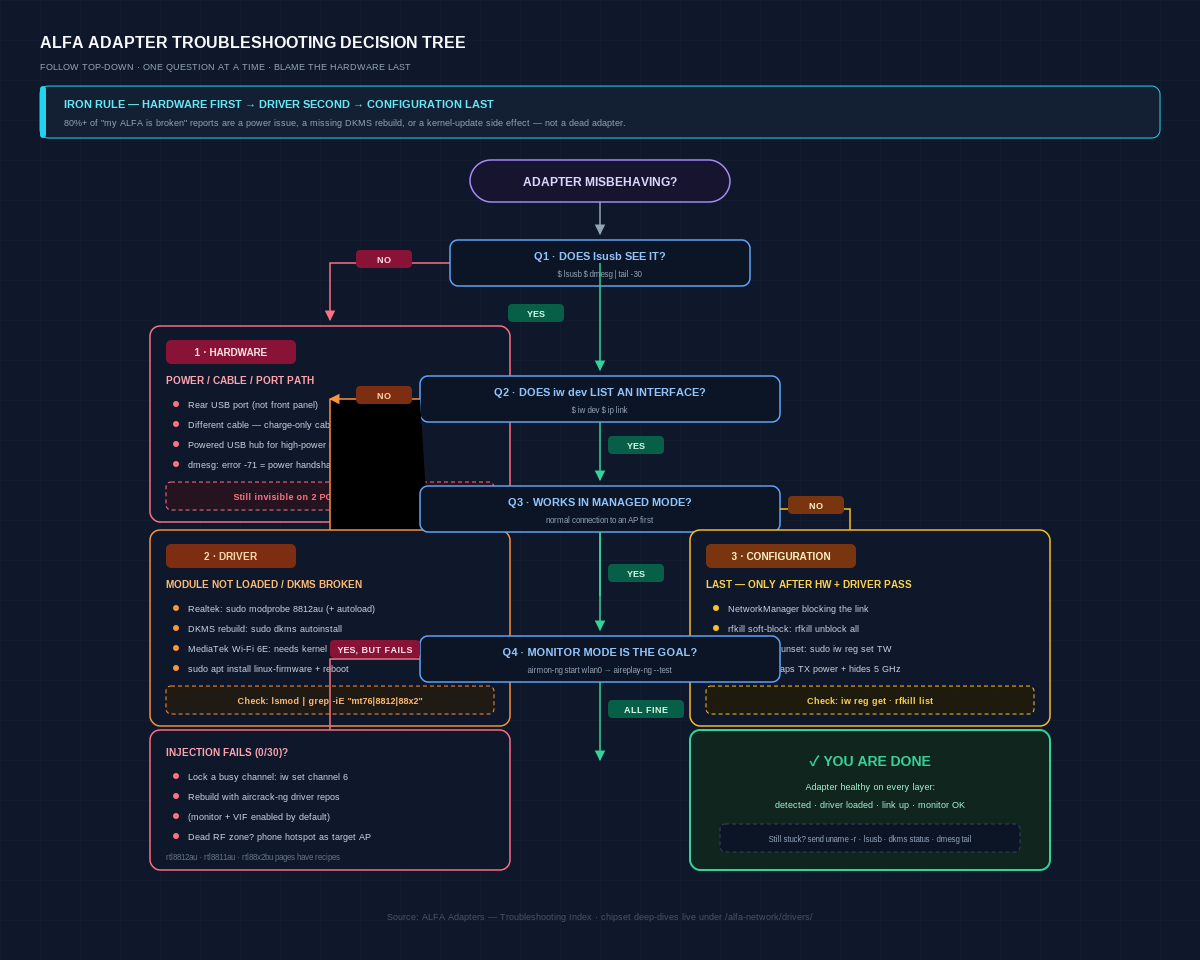
Problem classification index
| Category | Typical issues |
|---|---|
| Detection | Adapter not in lsusb, no interface, disappears after reboot |
| Driver | Kernel too old for the in-kernel driver, DKMS build fails (older kernels only), module not loaded, firmware errors in dmesg |
| Connection | Won't associate, drops constantly, slow link |
| Monitor mode | airmon-ng fails, injection test fails, no frames captured |
| Power | Adapter dies under load, works on one PC but not another |
| Regulatory | Wrong channel set, TX power capped, "5 GHz channels missing" |
Every chipset has its own deep-dive page — bookmark yours:
| Chipset | Adapters | Driver page |
|---|---|---|
| MT7612U | AWUS036ACM | mt7612u |
| MT7610U | AWUS036ACHM | mt7610u |
| MT7921AU / MT7921AUN | AWUS036AXM / AWUS036AXML | mt7921aun |
| RTL8812AU | AWUS036ACH | rtl8812au |
| RTL8811AU | AWUS036ACS | rtl8811au |
| RTL8832BU | AWUS036AX / AWUS036AXER | rtl8832bu |
| RTL8821CU | AWUS036EACS | rtl8821cu |
Issue 1: Adapter not detected at all (lsusb empty)
Symptom
Plugged in, LED may or may not light, and lsusb shows no Realtek/MediaTek line.
Diagnosis
lsusb
dmesg | tail -30
Look for device descriptor read/64, error -71 or device not accepting address in dmesg — classic power-handshake failures.
Root cause
Almost always USB power or cable — especially on the high-power models (AWUS036AXM/AXML, AWUS036AX) connected to a front-panel port or an unpowered hub.
Fix
- Try a rear USB port (or the USB-C port via an adapter).
- Try a different cable — some cheap USB-C cables are charge-only.
- Use a powered USB hub.
- On a laptop, unplug other high-power USB devices.
- If still invisible on two different computers, the adapter is faulty — contact support.
Issue 2: lsusb sees it, but no wlanX interface
Symptom
lsusb shows the adapter; iw dev / ip link show nothing.
Diagnosis
dmesg | grep -iE "wlan|firmware|error"
lsmod | grep -iE "mt76|mt7921|rtw88|rtw89|8812|8811|8821|8852"
Root cause
Common causes:
- Realtek chipsets on a kernel older than the in-kernel version (EACS 6.2, ACH / ACS 6.13, AX / AXER 6.17): the DKMS module was never loaded (or failed to build after a kernel update). On a new enough kernel the in-kernel
rtw88/rtw89driver binds by itself. - MediaTek MT7921 (AXM / AXML): the kernel is older than 5.18 (
mt7921umissing) or firmware blobs are absent. - Composite WiFi + Bluetooth devices (AWUS036EACS, AWUS036AXML): after re-plugging, the WiFi function can hang during probe (
lsusbshows the device but nowlx...interface appears).
Fix
- Realtek, kernel new enough (EACS ≥ 6.2, ACH / ACS ≥ 6.13, AX / AXER ≥ 6.17): nothing to install — check
sudo dmesg | tailfor thertw88_*/rtw89_*lines andsudo apt install linux-firmware. (Older kernel only:sudo modprobe 8812au(match your chipset), add it to/etc/modules-load.d/alfa.conf; ifmodprobesaysModule not found, rebuild withsudo dkms autoinstall.) - MediaTek:
sudo apt install linux-firmwareand reboot. Kernel too old? Upgrade the OS — see the compatibility matrix. - EACS / AXML with no
wlx...interface after re-plug: unplug and plug into a different USB port. Rebinding the driver by hand usually does not help.
Issue 3: DKMS build fails after a kernel update (older kernels only)
This issue only applies if you installed a community DKMS driver, which is only needed for the Realtek models on kernels older than their in-kernel version (EACS 6.2, ACH / ACS 6.13, AX / AXER 6.17). On a new enough kernel the Realtek chips use the in-kernel
rtw88/rtw89drivers and there is nothing to rebuild.
Symptom
"Adapter stopped working" right after apt upgrade; dmesg shows 8812au: version magic ... should be ....
Diagnosis
dkms status
If your module shows Error! or a broken kernel-version entry, that is the problem.
Root cause
The driver's DKMS recipe could not rebuild against the new kernel — usually missing headers, or the repo is too old for a brand-new kernel.
Fix
- Install headers:
sudo apt install linux-headers-$(uname -r) - Force rebuild:
sudo dkms autoinstall - Still failing? Update the driver repo and reinstall:
cd /opt/rtl8812au && sudo git pull && sudo make dkms_install
- Reboot and check
dkms statusagain — it should list your module asinstalled.
Issue 4: Monitor mode starts but injection test fails
Symptom
airmon-ng start succeeds, wlan0mon exists, but aireplay-ng --test reports 0/30 or Failed.
Diagnosis
sudo aireplay-ng --test <monitor-interface>
sudo iw dev <monitor-interface> info   # confirm it really is type monitor
Root cause
You are on a channel no AP is using (injection needs an AP to reply to), or the RF environment is empty (isolated lab), or (5 GHz) the regulatory domain blocks TX, or the adapter is an AWUS036AXM / AXML: the MT7921 cards did not pass injection on stock kernel 6.17 (main cause: a mac80211 chanctx regression since kernel 6.16; the firmware also locks the injection rate to 1/6 Mbps), so aireplay-ng --test finds 0 APs there. On older kernels with a community DKMS driver, a driver built without monitor/injection support is another possible cause.
Fix
- Lock a channel with active APs:
sudo iw dev <monitor-interface> set channel 6 - 5 GHz: run
sudo iw reg set USbefore the test, and restore your region afterwards (on the GX10 we restored withsudo iw reg set TW). - Retest. Still 0/30 on an MT7921 card (AXM / AXML)? That is the known stock-6.17 limitation — use another card (ACM, ACHM, ACH, ACS, EACS, AX, AXER passed on 2.4 GHz). On a kernel older than your card's in-kernel version with a Realtek card, see the DKMS driver pages: rtl8812au, rtl8811au, rtl8832bu.
- In a dead RF zone, create your own AP with a phone hotspot on the same channel.
Issue 5: Wi-Fi drops or is slow
Symptom
Link connects then drops every few minutes; throughput far below the class rating.
Diagnosis
iw dev <interface> link    # signal + tx rate
iw reg get | head -20      # regulatory domain
Root cause
- Regulatory domain: if
iw reg getshowscountry 00(unset), TX power is capped at the default 20 dBm limit. - Power saving: aggressive USB power management throttles the radio.
- Overheating: sustained TX on high-power adapters.
Fix
- Set your region:
sudo iw reg set TW(or your country code). - Set TX power:
sudo iwconfig <interface> txpower 30(max legal for your domain). - Disable power save:
sudo iwconfig <interface> power off. - Prefer a USB 3.0 port for AC1200+ adapters — USB 2.0 caps throughput.
Issue 6: 5 GHz channels missing
Symptom
Only 2.4 GHz networks visible; iwlist <interface> freq shows no 5 GHz entries.
Root cause
The regulatory domain is unset or restricted (often country 00 on fresh installs), so the driver refuses 5 GHz channels.
Fix
sudo iw reg set TW    # replace with your country code
sudo ip link set <interface> down && sudo ip link set <interface> up
Platform notes: ASUS GX10 / Ubuntu 24.04 ARM64
These come from our test run (kernel 6.17.0-1014-nvidia, 2026-11-16 to 2026-11-19) and apply to all nine ALFA cards unless noted:
- Do not run
airmon-ng check kill. It stops NetworkManager and cuts the GX10's network. Useiwand operate only on the adapter'swlx...interface; never touch the built-inwlP9s9. - RX stall: after switching monitor/AP modes repeatedly, a card can stop receiving anything. Unplug and replug it (the interface name stays the same because it derives from the MAC).
- EACS / AXML re-plug: if the WiFi probe hangs and no
wlx...interface appears, plug into a different USB port. - 5 GHz injection / deauth: run
sudo iw reg set USfirst to unlock TX, and restore your region afterwards. hcxdumptool8.x failed to arm on every card except the EACS (it needs active monitor; the EACS armed on 2.4 GHz but failed on 5 GHz). Useairodump-ng+aireplay-ng; convert captures withhcxpcapngtool --all.- aircrack-ng on ARM64 has to be compiled from source (and use the git version of wifite).
- Handshake capture in an office with several APs of the same name: do not lock
--bssid, capture the whole channel. - Only use these tools on networks you own or are authorized to test.
Still not solved?
Before you give up, collect this exact information and contact us (or the driver project) — it is what a maintainer needs to help you:
uname -r
lsusb
dkms status    # only relevant if you installed a DKMS driver (older kernels only)
dmesg | tail -50
iw dev
Attach all of the above plus: your adapter model, the OS/kernel, and the exact command whose output surprised you. One more thing worth checking — the hardware integration guides if you are running a Jetson, Raspberry Pi or Unitree robot; embedded boards have their own power and driver quirks.